
Local Bookmarks by Tags
| miTaggedMarks |
Local Bookmarks by Tags |
|
Some Screenshots With
Description Main Window with the filter section on the left and the list of bookmarks on the right.
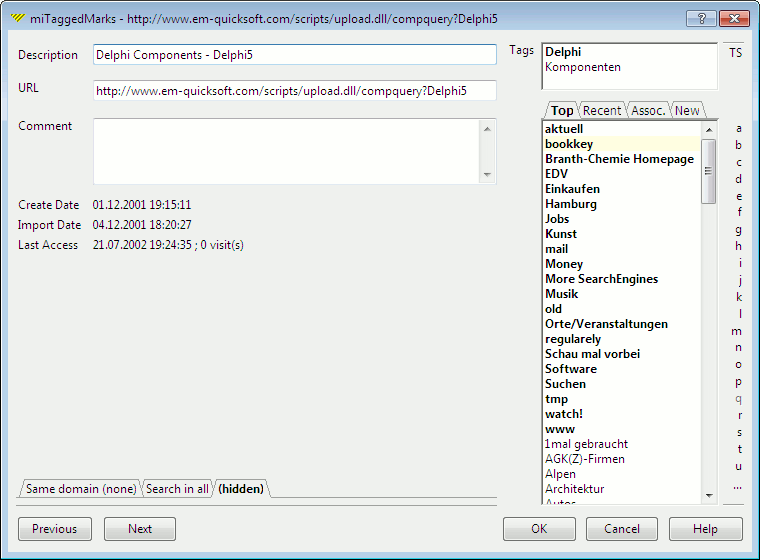
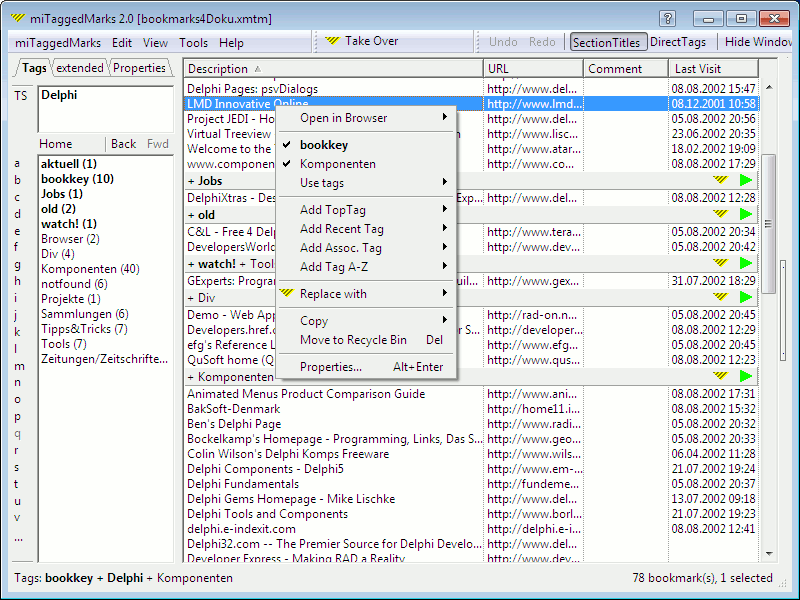 Example Firefox Toolbar with Commands for miTaggedMarks Commands to take over link data as a bookmark in miTaggedmarks or to open miTaggedMarks main window, both with or without configurable tags predefined, and many more functions possible.  Main Window full featured, with - more tool buttons, - the DirectButtons left of each tag to set it as the only filter tag with one click, - icon buttons in each SectionTitle for actions with the section's bookmarks or tags, - and the DirectTags panel, for easy de/assignment of tags directly in main window. 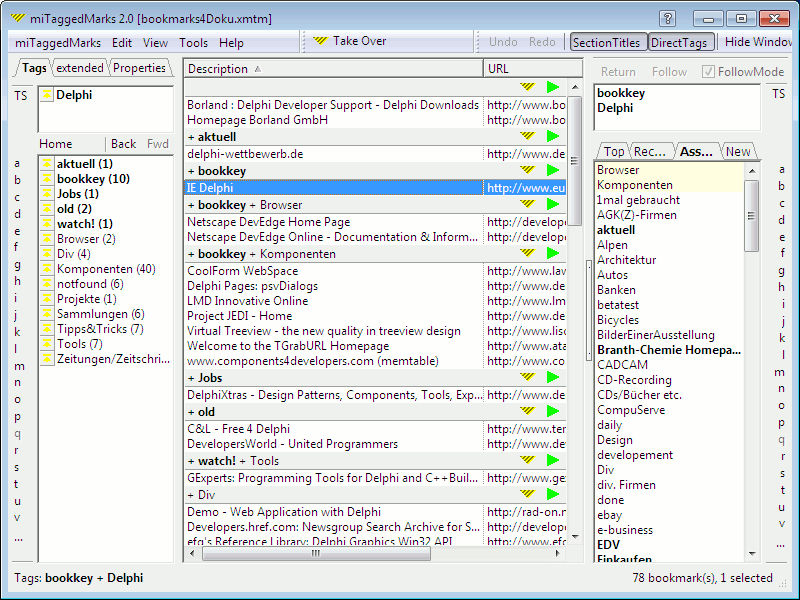 Main Window with Boolean AND-OR-NOT-Selection for FilterTags easy tu use, with full interactive feedback of both the list of bookmarks and the lists of available tags. 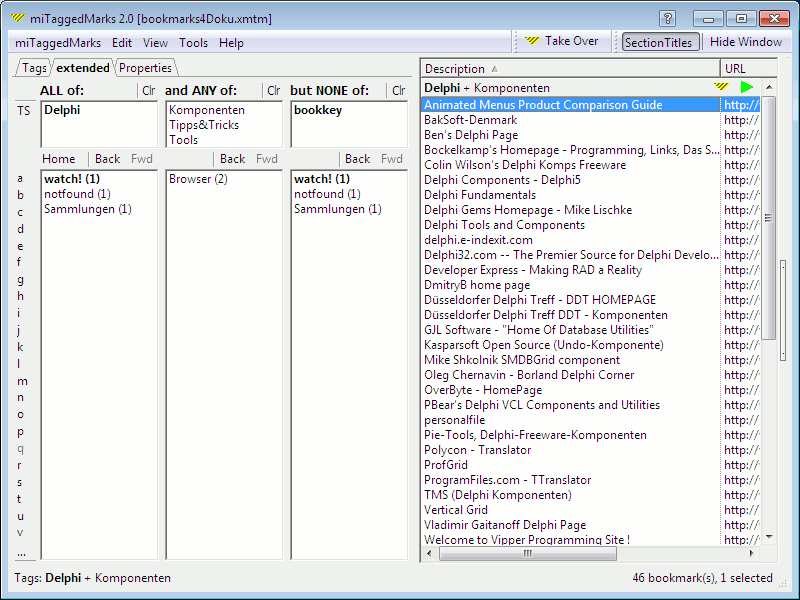 Dialog for Bookmark Properties with the tag section on the right.
 |
||||||||||||||||||||||||||||||||||||||||||||||||||||||
| Last Update: 30Jul2009; Michael Valentiner-Branth, email: webmaster@miTaggedMarks.com |